
Installer IPTV på din Formuler Box/enhed (MyTV Online Player)
- marts 2021
FormulerZ-bokse er en af de bedste enheder til at se IPTV. Den vigtigste fordel ved FormulerZ-bokse er understøttelse af både MAC-baseret Portal System og M3U-baseret playliste.
FormulerZ8 er den sidste version af Formuler-bokse med MYTV Online 2-applikationen, som understøtter 4K Ultra HD streaming. I denne vejledning vil vi vise dig, hvordan du bringer IPTV-kanaler til din MYTV Online 2 på FormulerZ8.
Denne opsætningsvejledning kan bruges til alle modeller af Formuler-enheder/-bokse:
TRIN 1:
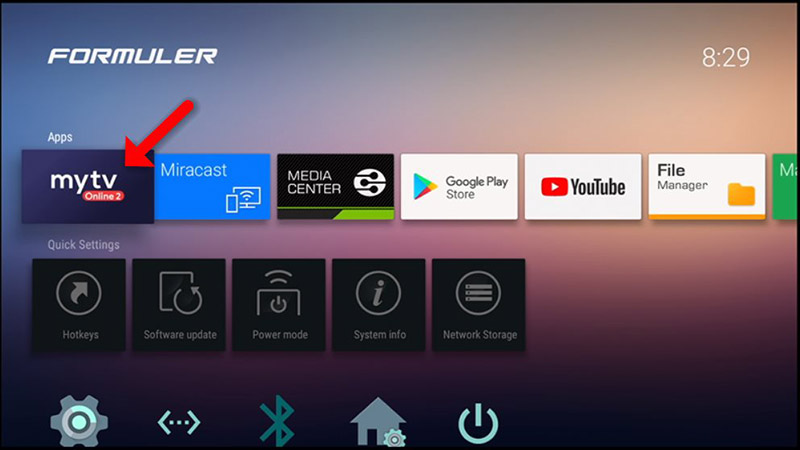
Åbn den eksklusive ansøgning til at se IPTV i Formuler-boksene “MYTV Online 2”.
Hvis du ikke har denne applikation på din enhed, kan du downloade den fra Google Play Store.
TRIN 2:
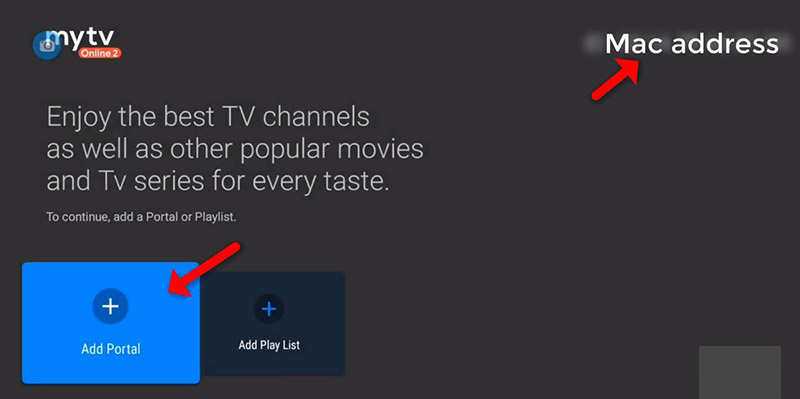
Du kan se boksens MAC-adresse øverst til højre på denne side.
Bemærk venligst, at denne MAC-adresse skal gives til din IPTV-udbyder.
Her kan du se de to muligheder, vælg “Add Portal” for at sætte enheden som en MAC-baseret enhed som MAG-bokse.
TRIN 3:
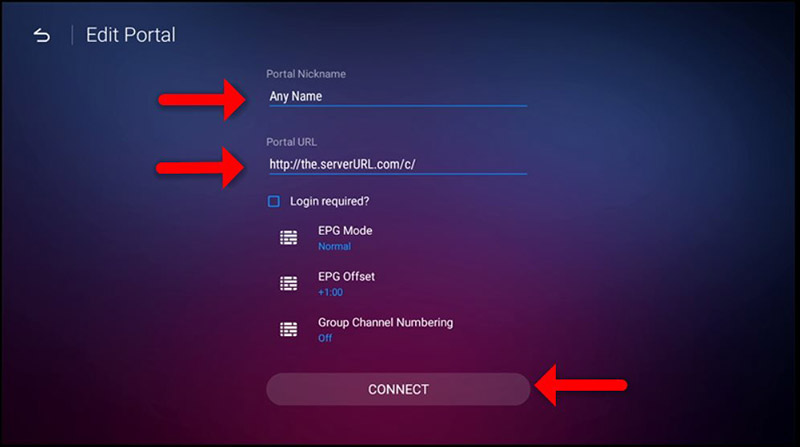
Ind kom Portal Nickname (eksempel: MYIPTV). Indtast IPTV Portal URL, som du får fra din IPTV-udbyder, og klik på “CONNECT”. Du kan bede din IPTV-udbyder om en portal URL.
TRIN 4:
Succesfuld forbindelse! Du modtager alle kanaler, der er tilknyttet dit abonnement. Bemærk, at dette kan tage lidt tid.
Install IPTV on your Formuler Box/Device (MyTV Online Player)
FormulerZ boxes are one of the best devices for watching IPTV.
The most important advantage of FormulerZ boxes is supporting both MAC base Portal System and M3U base Playlist.
FormulerZ8 is the last version of Formuler boxes with MYTV Online 2 application which support 4K Ultra HD streaming,
In this tutorial, we are going to show you how to bring IPTV channels to your MYTV Online 2 on FormulerZ8.
This setup guide can be used for all models of Formuler devices/boxes:
STEP 1:
Open the exclusive application for watching IPTV in Formuler boxes “MYTV Online 2”.
If you don’t have this application on your device you can download it from the Google Play store.
STEP 2:
You can see the box’s MAC in the top right of this page.
Please note, this MAC address must be given to your IPTV provider.
Here you can see the two options, select “Add Portal” to set the device as a MAC based device like MAG boxes.
STEP 3:
Enter Portal Nickname (Example: MYIPTV).
Enter IPTV Portal URL you get from your IPTV provider and click on “CONNECT”. You can ask for a portal URL from your IPTV service provider.
STEP 4:
Successful Connection! You receive all channels associated with your subscription
Please note, this might take a little time.