
Installer IPTV på din Amazon Fire TV Stick (IPTV Smarters Player)
- marts 2021
Selvom IPTV Smarters er opført på Google Play Store og Apple App Store til henholdsvis Android og iOS-mobiler, er Amazon Store ikke vært for det. Derfor, hvis du vil have det på din FireStick, skal du sideloade det.
For at sideloade en app på din enhed bør du have muligheden Apps from Unknown sources aktiveret eller slået til. Så lad os tage os af denne del først, før vi installerer IPTV Smarters på FireStick:
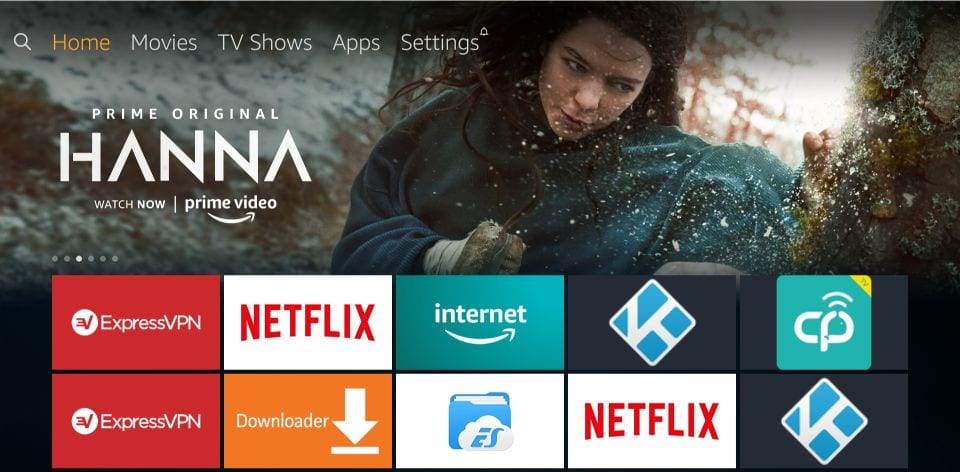
– På startskærmen på din FireStick finder du menulinjen øverst
Vælg Indstillinger i menulinjen
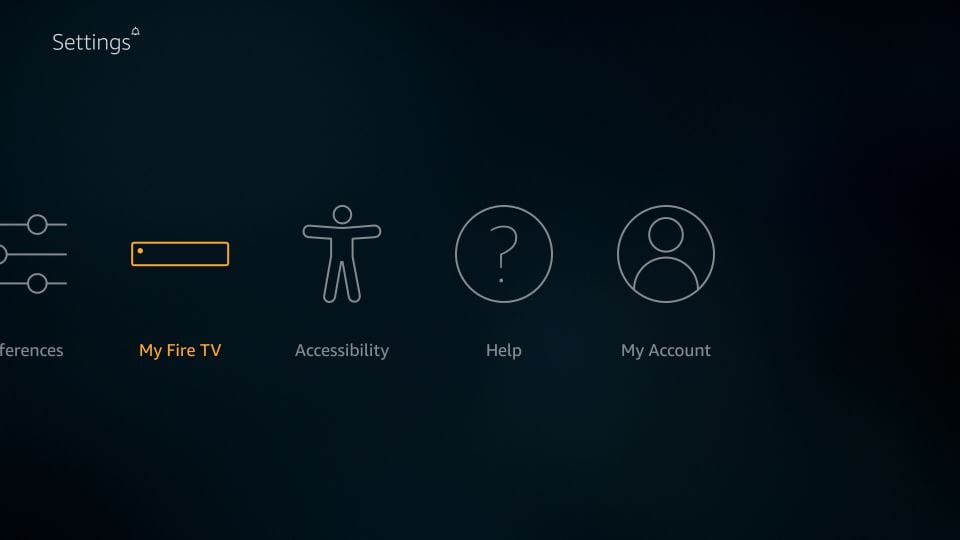
– I Indstillinger, vælg muligheden My Fire TV
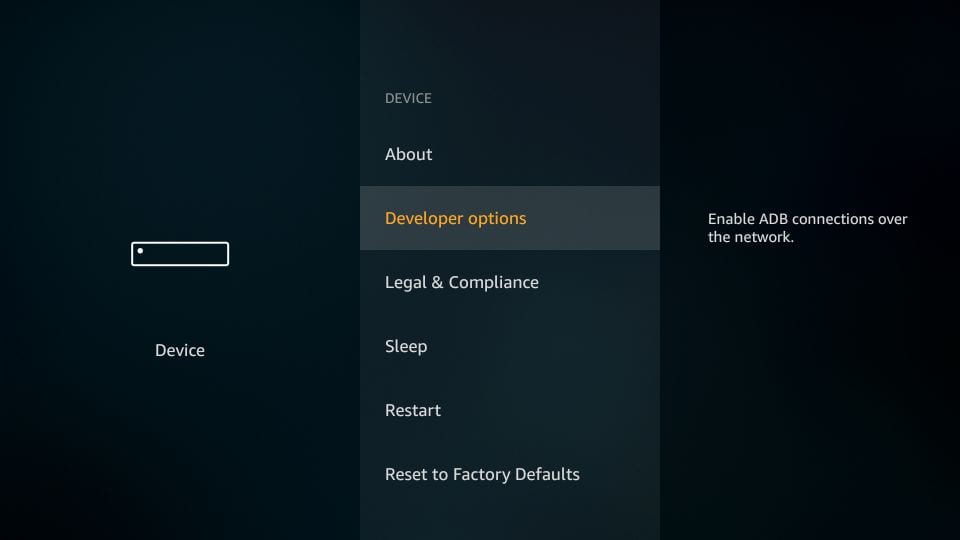
– Når følgende sæt indstillinger vises på næste skærm, klik på Udviklerindstillinger
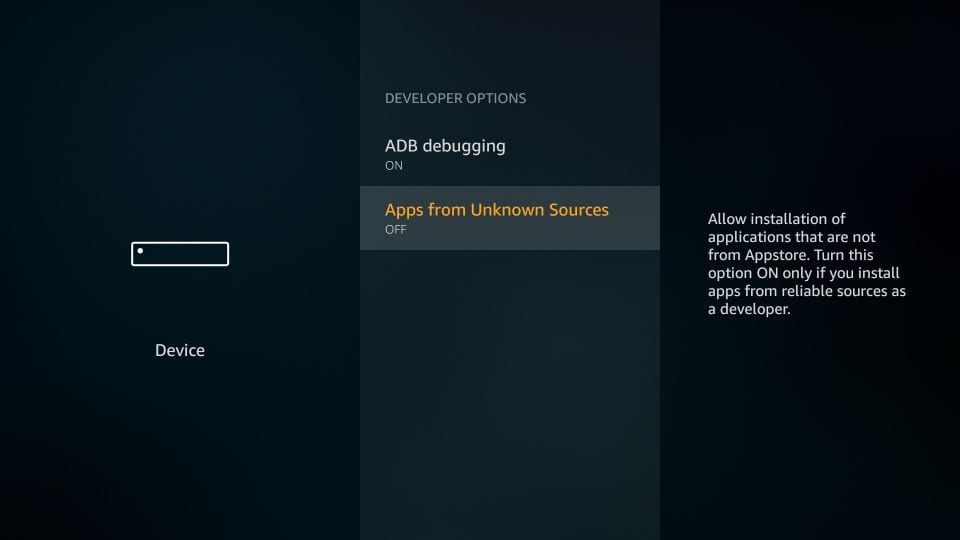
– Nu skal du tjekke, om Apps fra ukendte kilder er SLÅET FRA eller TÆNDT
Klik én gang, hvis den er SLUKKET
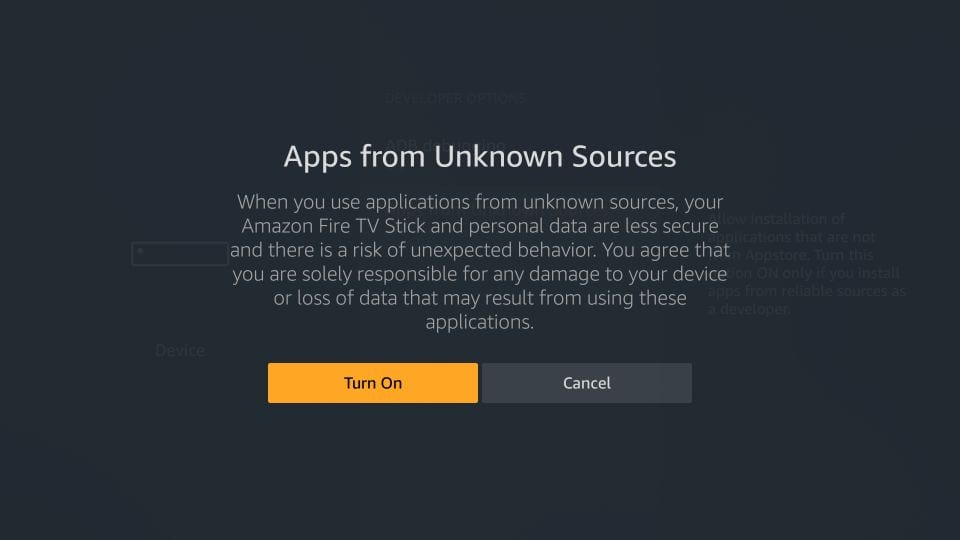
– En hurtig advarsel vises
For at holde Apps fra ukendte kilder slået til, klik på Tænd
Med dette har du konfigureret FireStick-indstillingerne til at tillade installation af IPTV Smarters og andre tredjepartsapps. Følg trinene nedenfor:
TRIN 1:
Vi installerer først Downloader-appen
Denne app hjælper dig med at sideloade IPTV Smartere på FireStick (fordi browser-downloads ikke er tilladt)
TRIN 2:
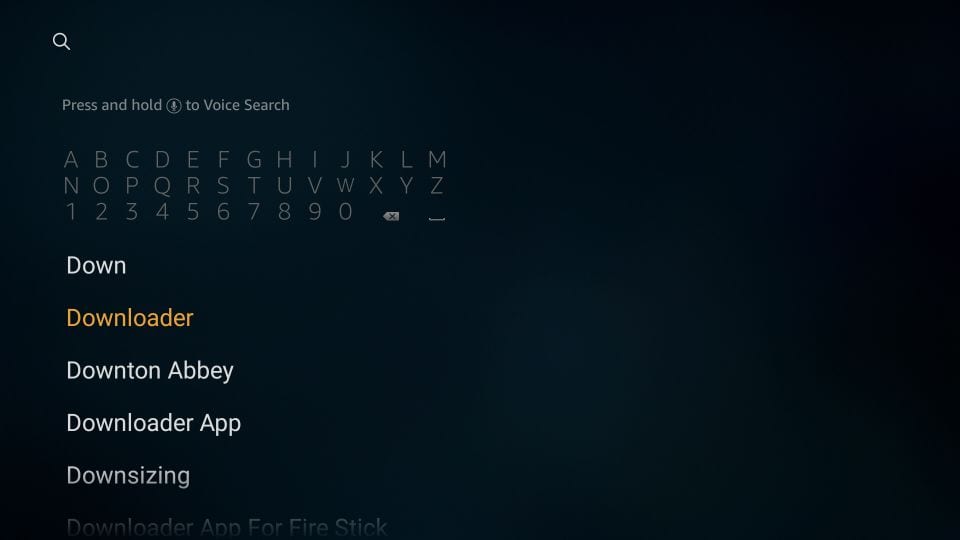
Fremhæv Søg-muligheden på startskærmen i FireStickSkriv navnet på appen (som er Downloader)Klik på Downloader-muligheden, når den vises i søgeresultaterNeVælg Downloader-ikonet på den følgende skærm og download og installer appen
TRIN 3:
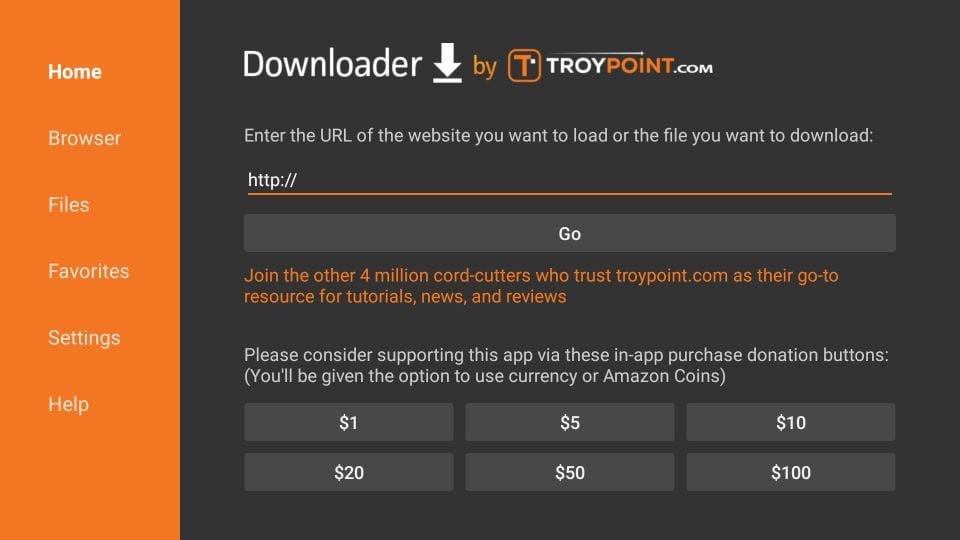
Du kan nu åbne Downloader-appenNår du kører denne app for første gang, vil et sæt prompts dukke op. Afvis dem, indtil du ser følgende skærm
På denne skærm skal du klikke på URL-tekstboksen i højre side (sørg for, at Home-muligheden i venstre menu er valgt), hvor der står ‘http://’
TRIN 4:
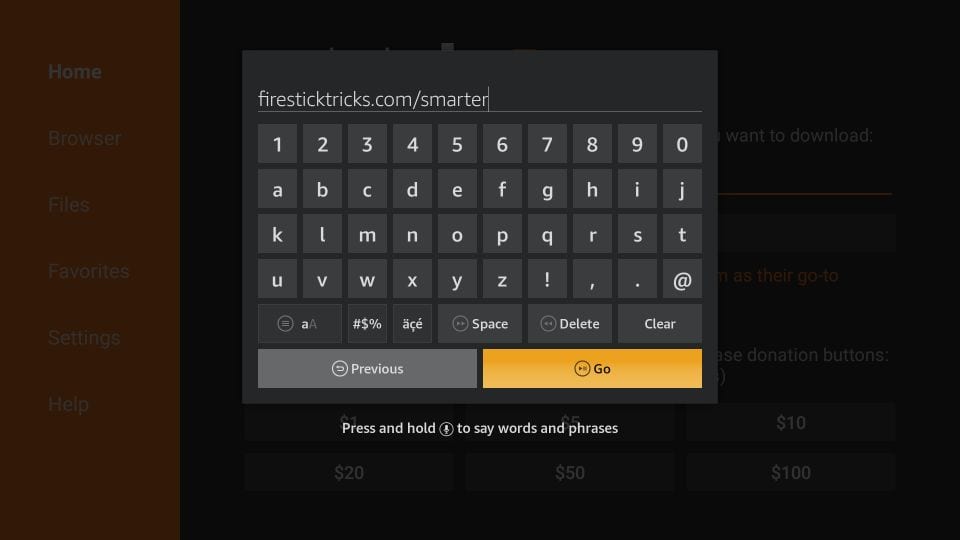
Gå videre og indtast følgende sti i dette vindue: https://www.firesticktricks.com/smarter
Bemærk: Du kan også bruge den forkortede version af URL’en firesticktricks.com/smarter
Klik GÅ
TRIN 5:
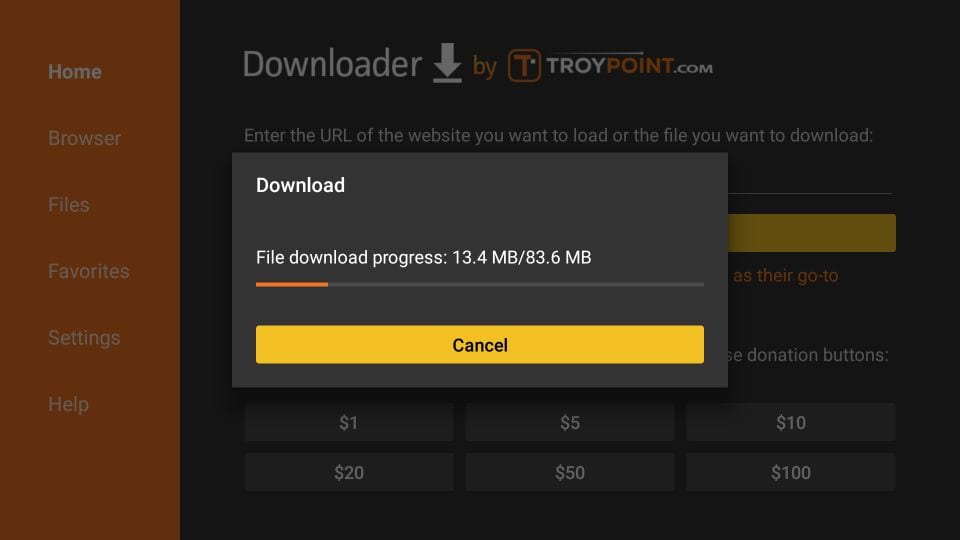
Giv det et minut eller to, indtil IPTV Smarter er downloadet til din FireStick-enhed
TRIN 6:
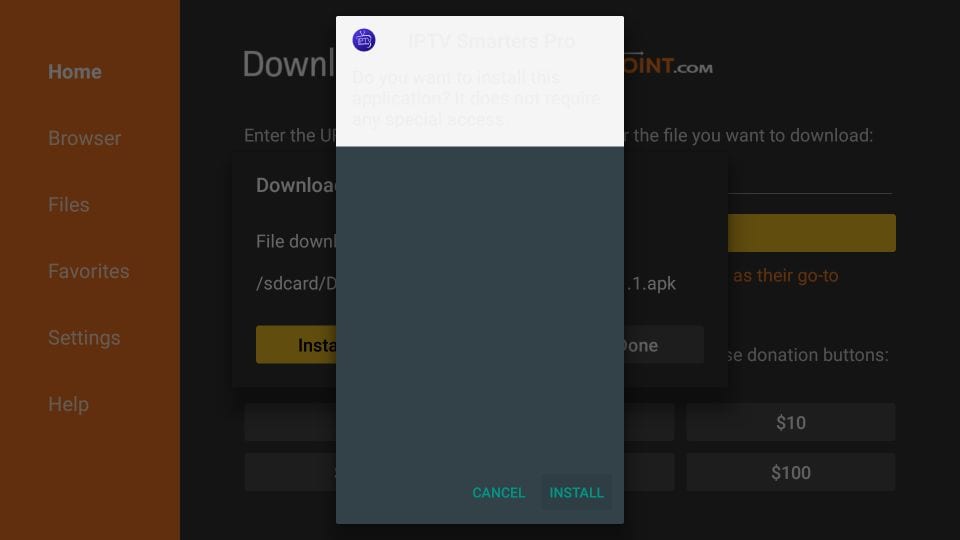
Når downloadet er færdigt, kører Downloader-appen APK-filen, og installationen starter
Klik på Installer
TRIN 7:
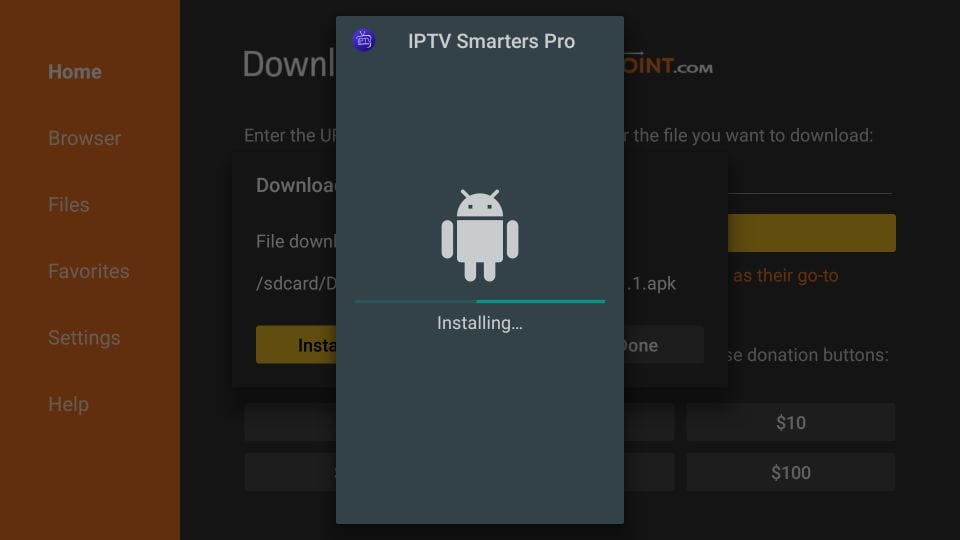
Vent på, at installationen er færdig
TRIN 8:
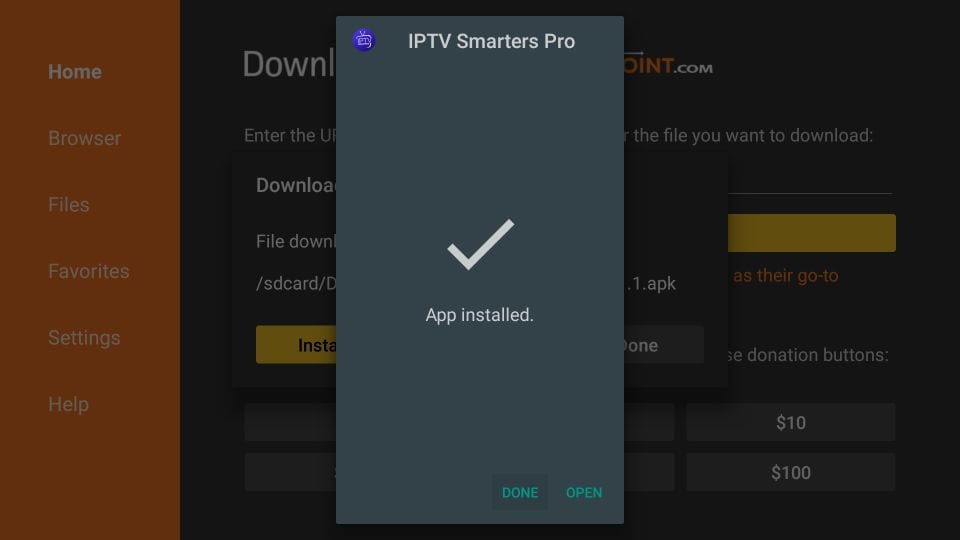
Installationen afsluttes med appens installerede notifikation
Du kan nu vælge at klikke ÅBEN og komme i gang med IPTV Smarters
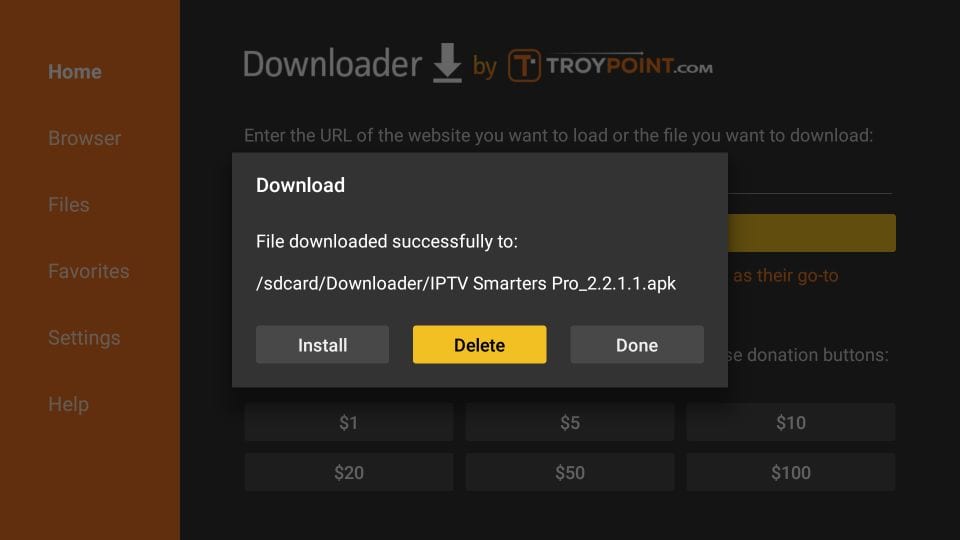
Jeg anbefaler at vælge FÆRDIG, så du først kan slette APK-filen og spare noget plads på FireStick-lageret
TRIN 9:
Hvis du har klikket FÆRDIG ovenfor, er du tilbage på Downloader-grænsefladen
Klik på Slet
TRIN 10:
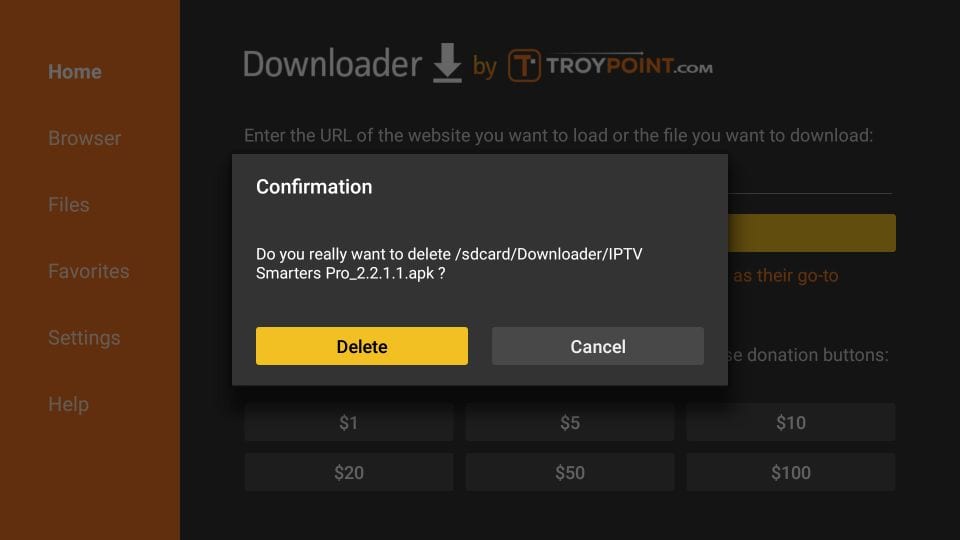
Klik igen på Slet
Enestående! Du har nu IPTV Smarters-appen på FireStick.
Når du kører IPTV Smarters-appen for første gang, vil Vilkår for brug være det første vindue. Scroll ned og klik på Accepter.
Du kan tilføje IPTV-kanaler til IPTV Smarters på to måder:
- Opsætning via Xtream Codes API.
- Setup via Playlist.
Opsæt IPTV Smarters via Xtream Codes API
Vi anbefaler opsætning via Xtream Codes API, fordi du får Catchup-funktionen på den måde og heller ikke behøver at tilføje nogen EPG-URL (den indlæses automatisk).
TRIN 1:
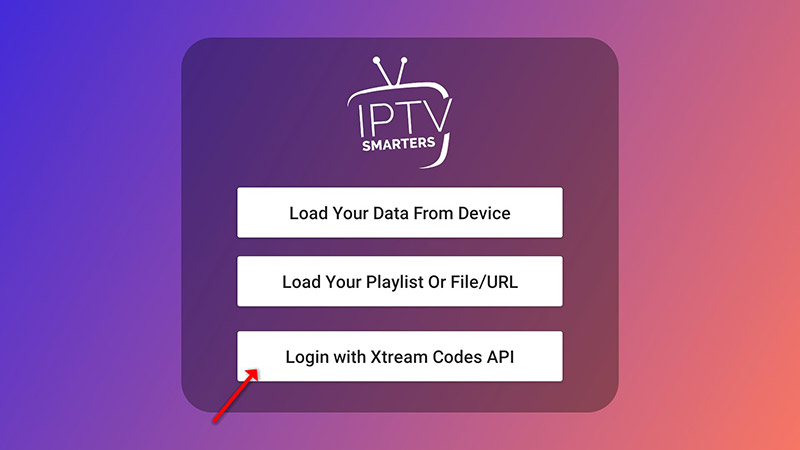
Åbn appen, når den er downloadet, og klik på “Tilføj bruger” og klik derefter på “Log ind med Xtream Codes API”.
TRIN 2:
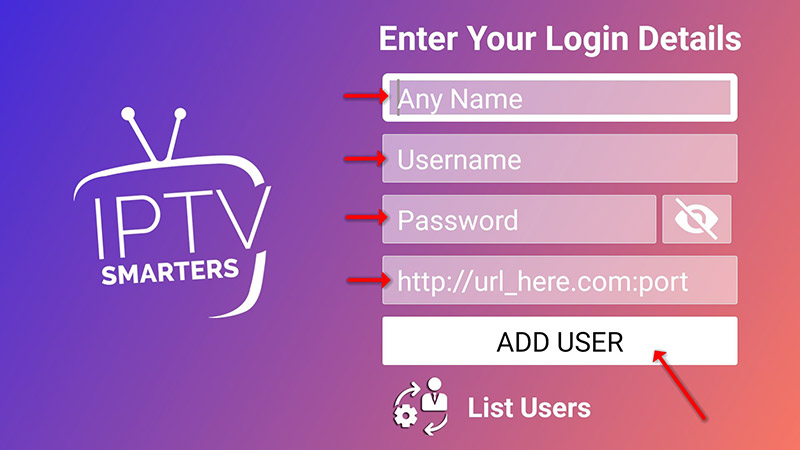
I dette trin vælger du i den første boks et navn, du ønsker, for eksempel “IPTV Xtream”. I den anden og tredje boks indtaster du “Brugernavn” og “Adgangskode” på din M3U-linje samt serverens URL, som også kan findes på din M3U-linje.
Klik nu på “TILFØJ BRUGER” for at gå videre til næste afsnit.
TRIN 3:
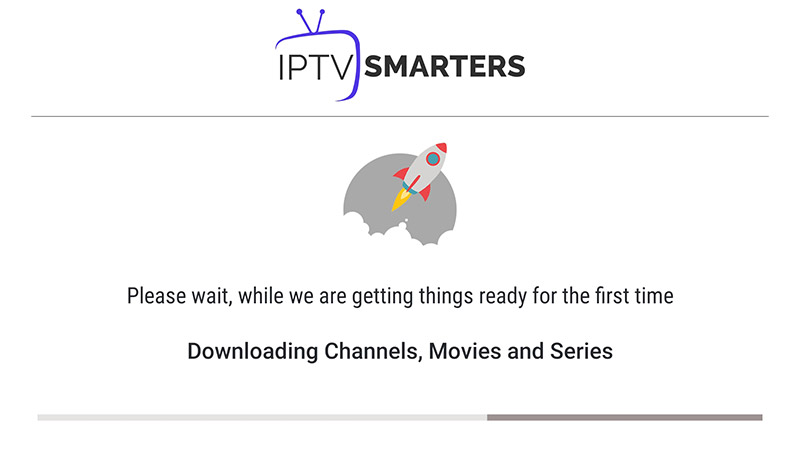
Vent et øjeblik.
TRIN 4:
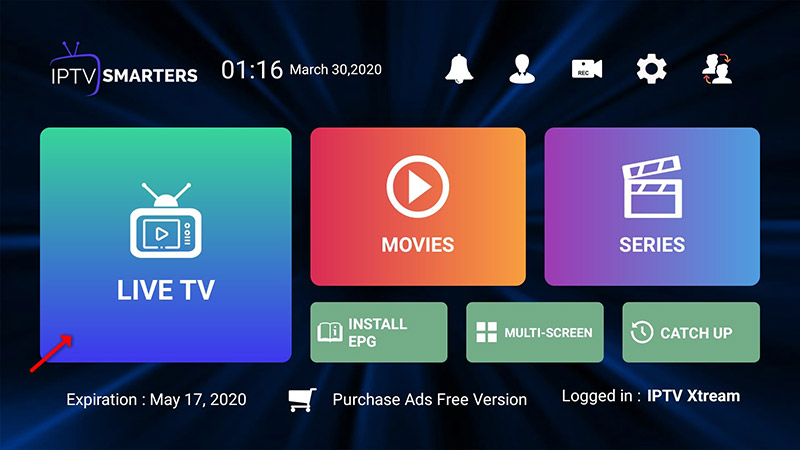
Klik nu på ikonet “Live TV“, som det vises på billedet via en rød pil.
TRIN 5:
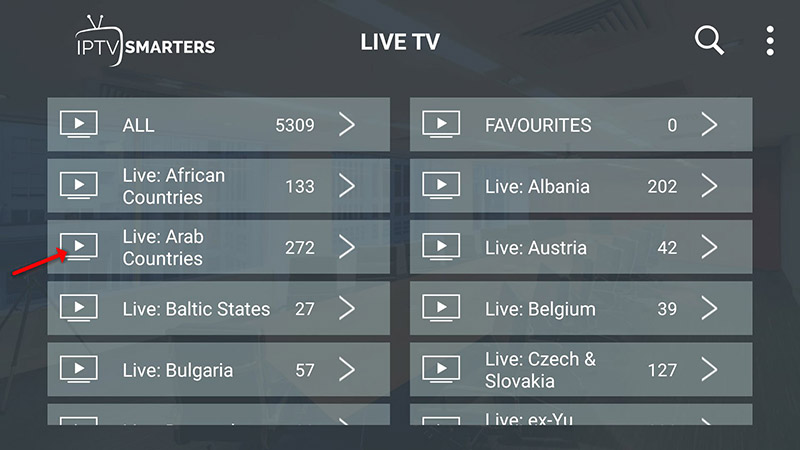
Nu skal du vælge den kanalgruppe, du vil se, og gå videre til næste sektion.
SETP 6:
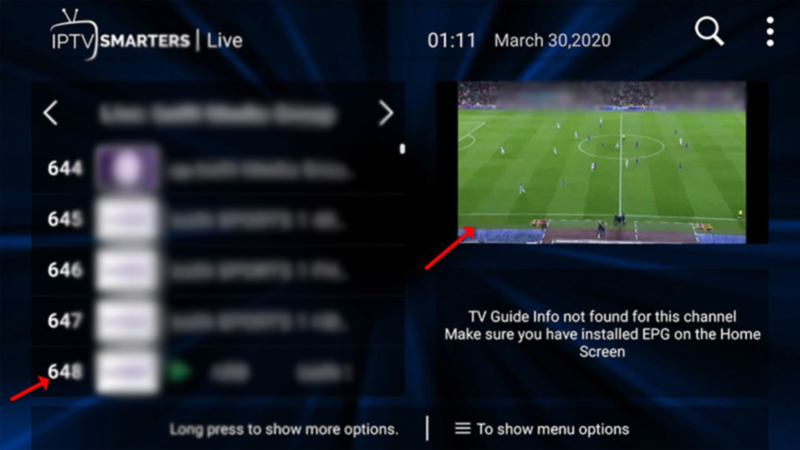
Nu skal du klikke på kanalnavnet og derefter dobbeltklikke på den lille skærm for at gøre det til fuldskærm som det sidste trin.
TRIN 7:
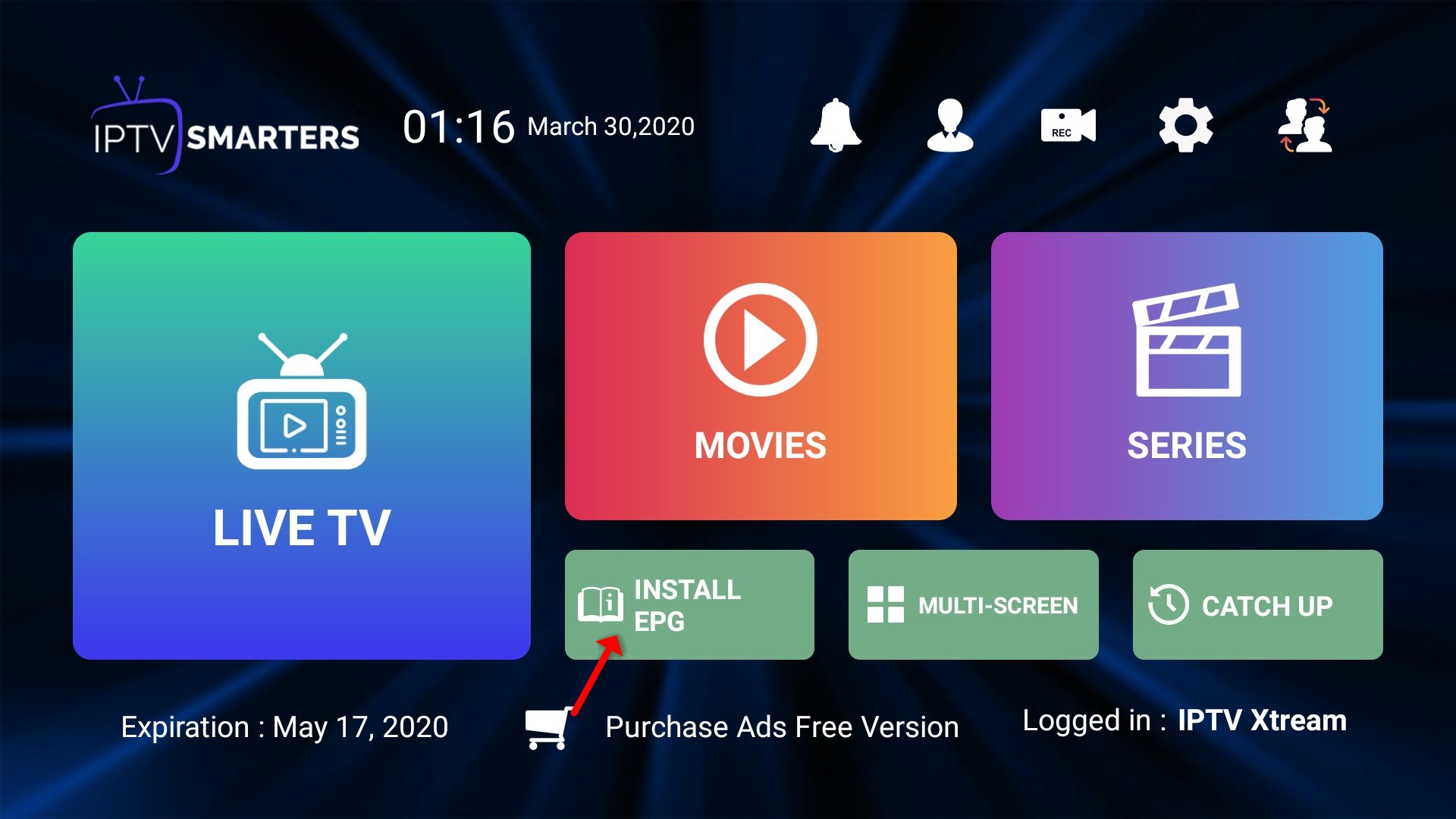
For at tilføje EPG behøver du ikke tilføje nogen EPG URL, klik blot på “Installer EPG“.
Opsæt IPTV Smarters via playliste
Hvis du ikke har et Xtream Code API, kan du bruge en M3U URL og vælge at indlæse din playliste eller fil URL.
TRIN 1:
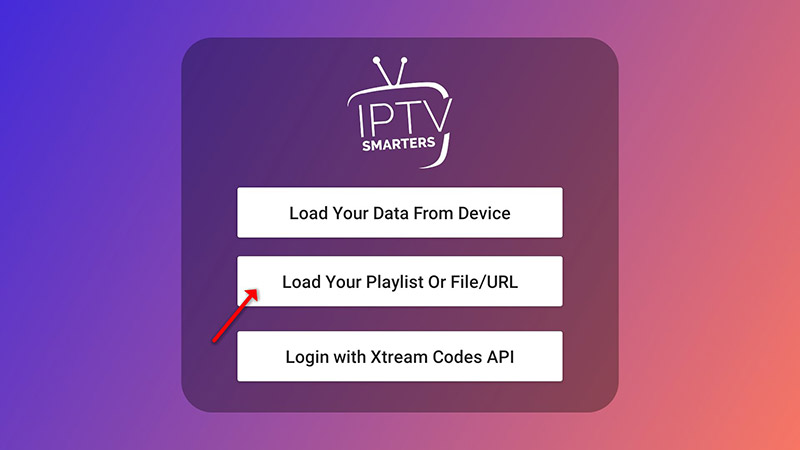
Åbn appen, når den er downloadet, og klik på “Tilføj bruger” og klik derefter på “Log ind med playliste“.
TRIN 2:
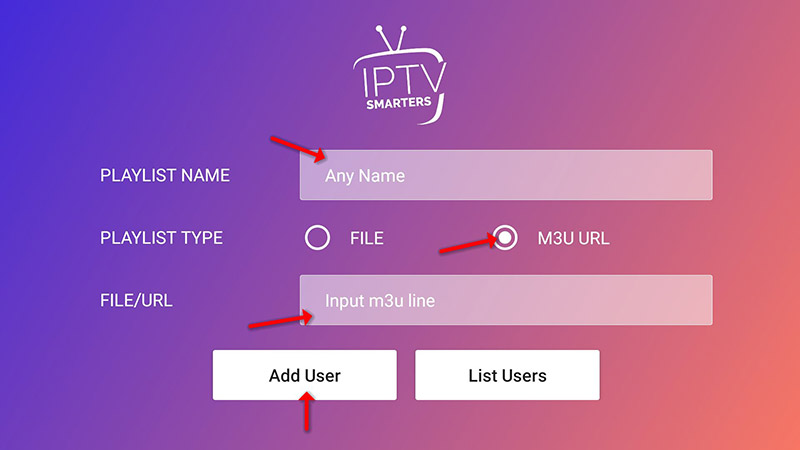
I dette trin, i den første boks, vælger du et navn, du ønsker, for eksempel “IPTV Playlist”. Vælg “M3U URL” og indtast M3U URL’en, som du får fra din IPTV-udbyder.
TRIN 3:
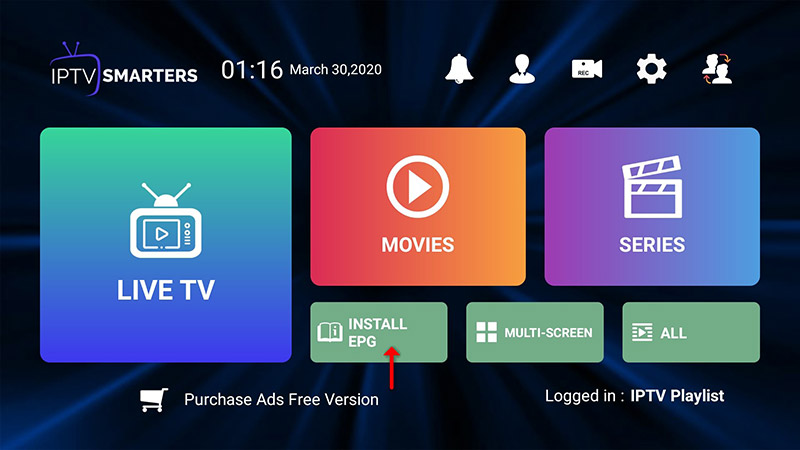
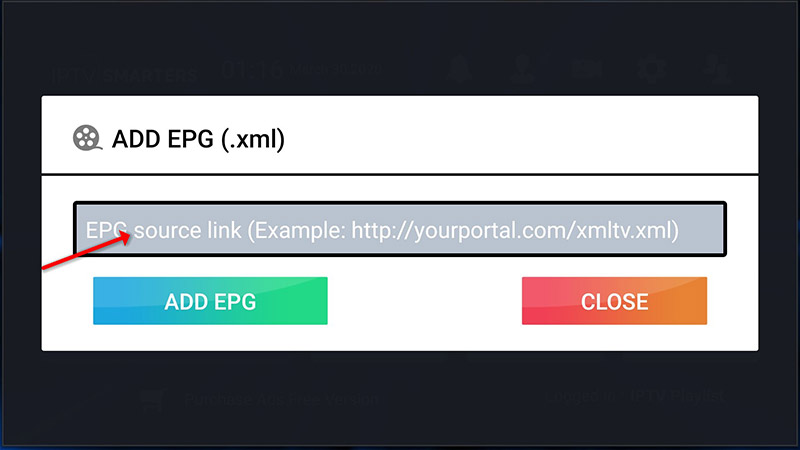
For at tilføje EPG klik på “Install EPG” og indtast EPG-URL’en.
TRIN 4:
Klik nu på “Live TV“-ikonet, vælg kanalgrupper og derefter den kanal, du vil se.
Install IPTV on your Amazon Fire TV Stick (IPTV Smarters Player)
Even though IPTV Smarters is listed on Google Play Store and Apple App Store for Android and iOS mobiles respectively, Amazon Store does not host it. Therefore, if you want it on your FireStick, you will need to sideload it.
To sideload any app on your device, you should have the option Apps from Unknown sources enabled or turned on. So, let’s take care of this part first before we install IPTV Smarters on FireStick:
– On the home screen of your FireStick, you will find the menu bar on the top
In the menu bar, select Settings
– In the Settings, choose the option My Fire TV
– When the following set of options are displayed on the next screen, click Developer Options
– Now, you need to check whether Apps from Unknown Sources is OFF or ON
Click it once if it is OFF
– A quick warning message is displayed
To keep Apps from Unknown Sources switched on, click Turn on
With this, you have configured the FireStick settings to allow the installation of IPTV Smarters and other third-party apps. Follow the steps below:
STEP 1:
We will first install the Downloader app
This app will help you sideload IPTV Smarter on FireStick (because browser downloads are not allowed)
STEP 2:
Highlight the Search option on the home screen of FireStick
Type the name of the app (which is Downloader)
Click the Downloader option when it is displayed in the search results
Choose the Downloader icon on the following screen and download and install the app
STEP 3:
You may now open the Downloader app
When you run this app for the first time, a set of prompts will appear. Dismiss them until you see the following screen
On this screen, you need to click the URL textbox on the right side (make sure the Home option in the left menu is selected) where it says ‘http://’
STEP 4:
Go ahead and enter the following path on this window: https://www.firesticktricks.com/smarter
Note: You may also use the shortened version of the URL firesticktricks.com/smarter
Click GO
STEP 5:
Give it a minute or two until the IPTV Smarter is downloaded onto your FireStick device
STEP 6:
When the download has completed, the Downloader app will run the APK file and the installation will start
Click Install
STEP 7:
Wait for the installation to finish
STEP 8:
Installation is concluded with the App installed notification
You may now choose to click OPEN and get started with IPTV Smarters
I recommend choosing DONE so that you may first delete the APK file and save some space on the FireStick storage
STEP 9:
If you clicked DONE above, you will be back on the Downloader interface
Click Delete
STEP 10:
Again, click Delete
Great! You now have the IPTV Smarters app on FireStick.
When you run the IPTV Smarters app for the first time, Terms of Use will be the first window. Scroll down and click Accept.
You can add IPTV channels to IPTV Smarters in two ways:
- Setup via Xtream Codes API.
- Setup via Playlist.
Setup IPTV Smarters via Xtream Codes API
We recommend setup via Xtream Codes API because you will have the Catchup feature this way and also do not need to add any EPG URL (it will load automatically).
STEP 1:
Open the app once downloaded and click on “Add user” then click on “Login with Xtream Codes API“.
STEP 2:
In this step, in the first box, select any name you want for example “IPTV Xtream”. On the second and third boxes, enter the “Username” and the “Password” of your M3U line and the server URL which can also be found on your M3U line.
Now Click on “ADD USER” to proceed to the next section.
STEP 3:
Wait some seconds.
STEP 4:
Now click on the “Live TV” icon as depicted in the image via a red arrow.
STEP 5:
Now you must select the channel group that you want to watch and proceed to the next section.
SETP 6:
Now you must click on the channel name and then double click on the small screen to turn into the full screen as the final step.
STEP 7:
To add EPG no need to add any EPG URL, Just click on “Install EPG“.
Setup IPTV Smarters via Playlist
If you don’t have an Xtream Code API, you can use an M3U URL and choose to Load Your Playlist or File URL.
STEP 1:
Open the app once downloaded and click on “Add user” then click on “Login with Playlist“.
STEP 2:
In this step, in the first box, select any name you want for example “IPTV Playlist”.
Select “M3U URL” and enter the M3U URL which you get from your IPTV provider.
STEP 3:
To add EPG click on “Install EPG” and enter the EPG url.
STEP 4:
Now click on the “Live TV” icon, select channels group then the channel you want to watch.