
Installer IPTV på dit Samsung & LG Smart TV (DuplexPlay)
- marts 2021
Opsætningsvejledning til Samsung & LG Smart TV. De fleste IPTV-tjenester bruger en mediecontroller-app kaldet ‘DuplexPlay’. DuplexPlay er gratis at prøve i 7 dage. Efter denne periode er du velkommen til at betale et lille beløb for at støtte appen, måske $0,99 for 6 måneder og $1,99 for 12 måneder.
Download DuplexPlay til dit Smart TV:
- Gå til din TV-appbutik
- Søg efter DuplexPlay
- Installer DuplexPlay og åbn DuplexPlay
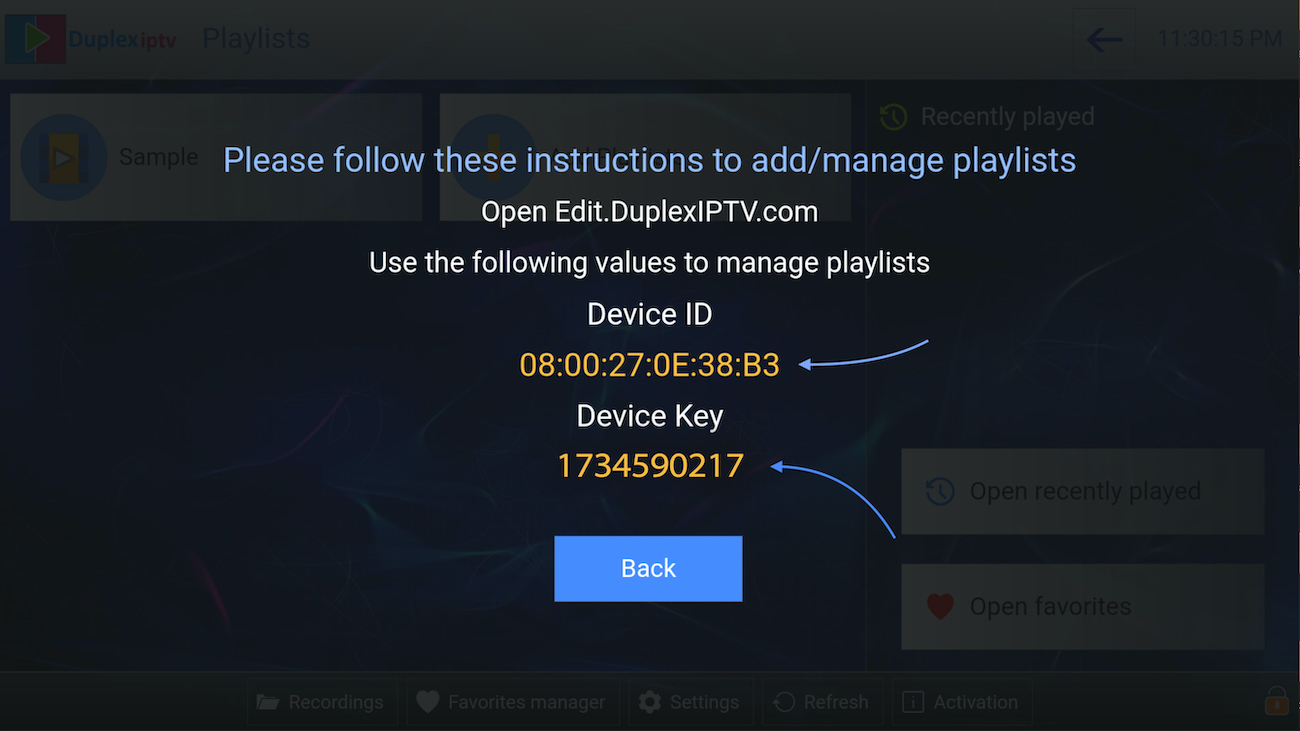
- Nu kan du se dit enheds-ID og enhedsnøgle på din tv-skærm
TRIN 1: Notér dit Device ID og Device Key
Efter at have installeret applikationen, åbn den, og du vil se enheds-ID og enhedsnøgle (du kan finde den ved også at vælge aktiveringsfanen).
TRIN 2: Log ind på DuplexPlay-administrationsportalen
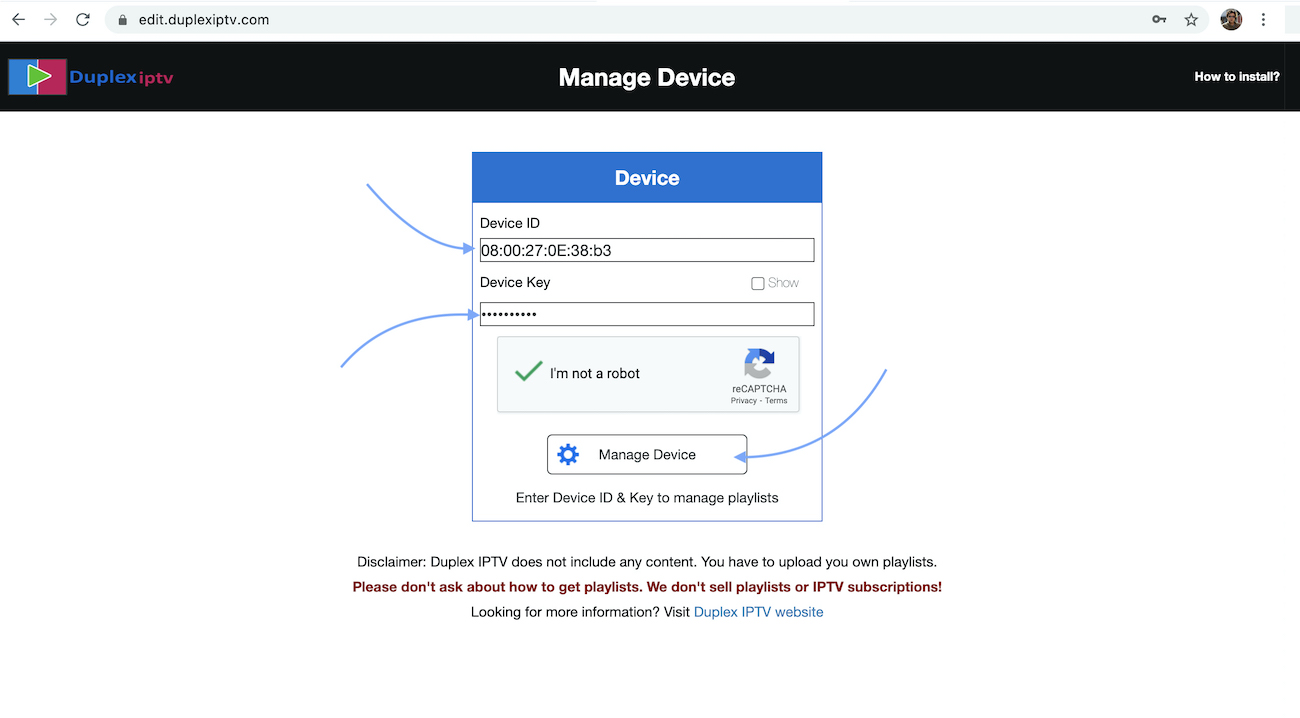
Navigér til edit.duplexplay.com og indtast det Enheds-ID og Enhedsnøgle, du noterede i TRIN 1, og klik derefter på Administrer Enhed.
TRIN 3: Tilføj XC-playliste
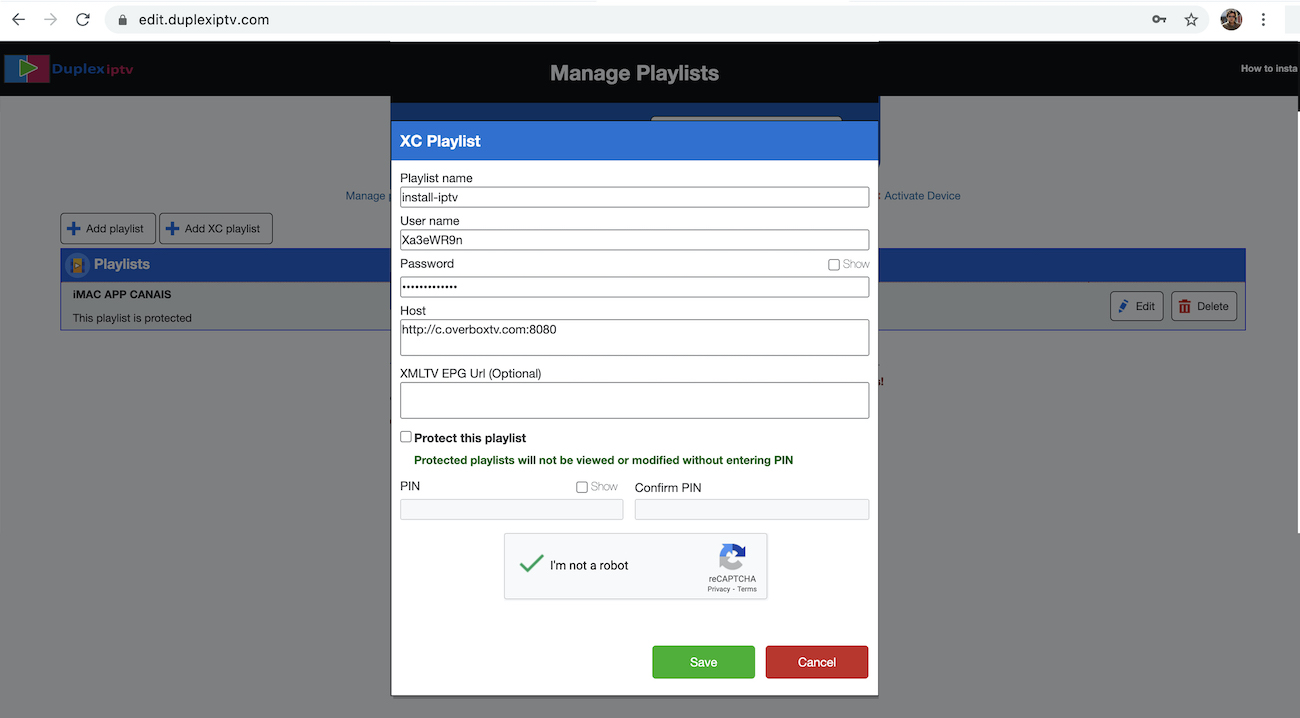
Du kan tilføje en playliste via begge metoder: M3u Link og Xtream-forbindelse. Vi anbefaler at forbinde via XC (Xtream Codes API) playlisten. Og indsend dine Xtream Codes API-oplysninger, som er leveret fra din IPTV-udbyder. Hvis du ikke har gjort det, klik her for et IPTV-abonnement nu.
Playlistenavn: Du kan sætte ethvert navn til din playliste. Indtast brugernavn, adgangskode og vært (server-URL for Xtream-kode-forbindelsen). Fuldfør captcha og klik på Gem.
TRIN 4: Opdater playlister i applikationen
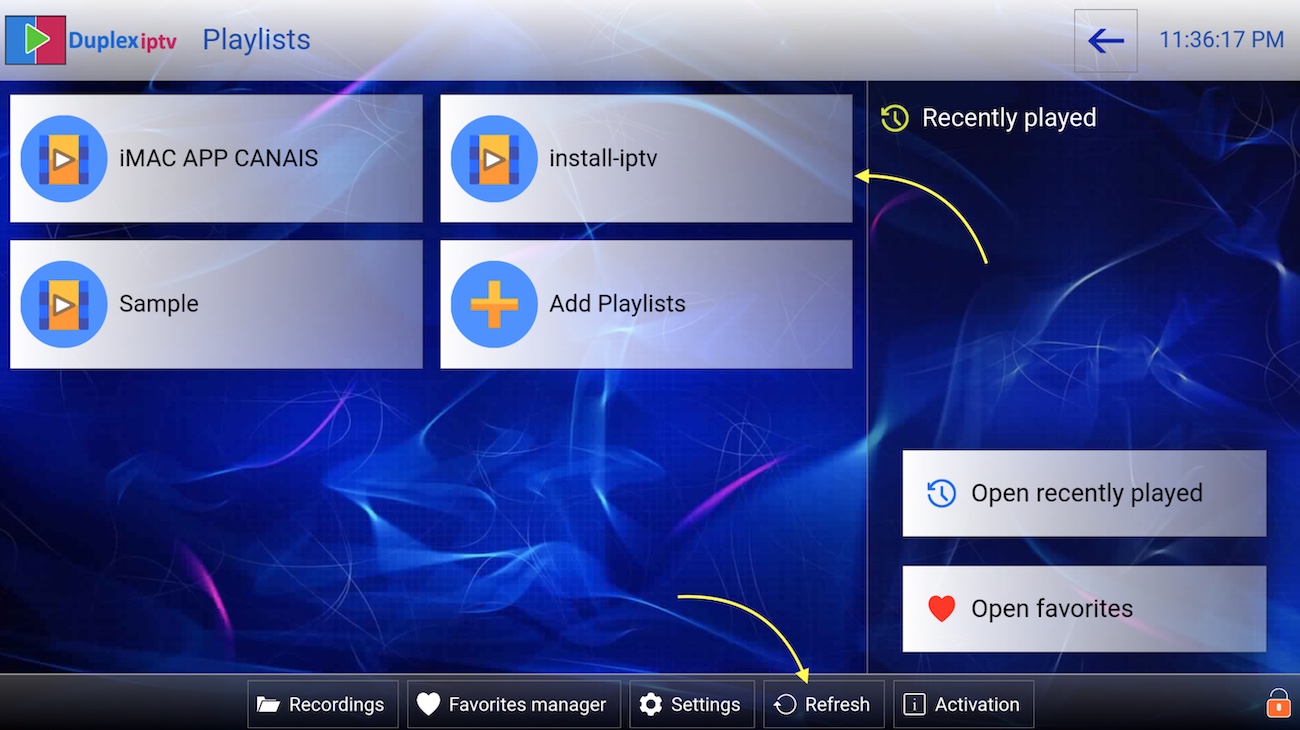
Så tilbage til DuplexPlay-applikationen og vælg Opdater for at genindlæse playlister, så skal playlistenavnet vises.
Install IPTV on your Samsung & LG Smart TV (DuplexPlay)
Setup instruction for Samsung & LG Smart TV. Most of the IPTV service uses a media controller app called ‘DuplexPlay’. DuplexPlay is free to try for 7 days. After this period you are welcome to pay a small amount to support the app, maybe $0.99 for 6 months and $1.99 for 12 months.
Download DuplexPlay into your Smart TV:
- Go to your TV apps store
- Search for DuplexPlay
- Install DuplexPlay and open DuplexPlay
- Now you can see your Device ID and Device Key on your TV screen
STEP 1: Note your Device ID and Device Key
After installing the application, Open it and you will see the Device ID and Device key (You can find it by choosing the activation tab too).
STEP 2: Login into the DuplexPlay management portal
Navigate to edit.duplexplay.com and Enter the Device ID and Device key you noted in STEP 1, Then click on Manage Device.
STEP 3: Add XC Playlist
You can add a playlist via both methods M3u Link and Xtream connection, We recommend connecting via XC (Xtream Codes API) playlist.
And submit your Xtream Codes API details which have delivered from your IPTV provider If you have not click here for an IPTV subscription now.
Playlist Name: You can set any name for your playlist.
Enter Username, Password, and Host (Server URL of Xtream Codes connection). Complete captcha and click on Save.
STEP 4: Refresh Playlists in the application
Then back to the DuplexPlay application and choose Refresh to reload Playlists, Then the playlist name must appear.